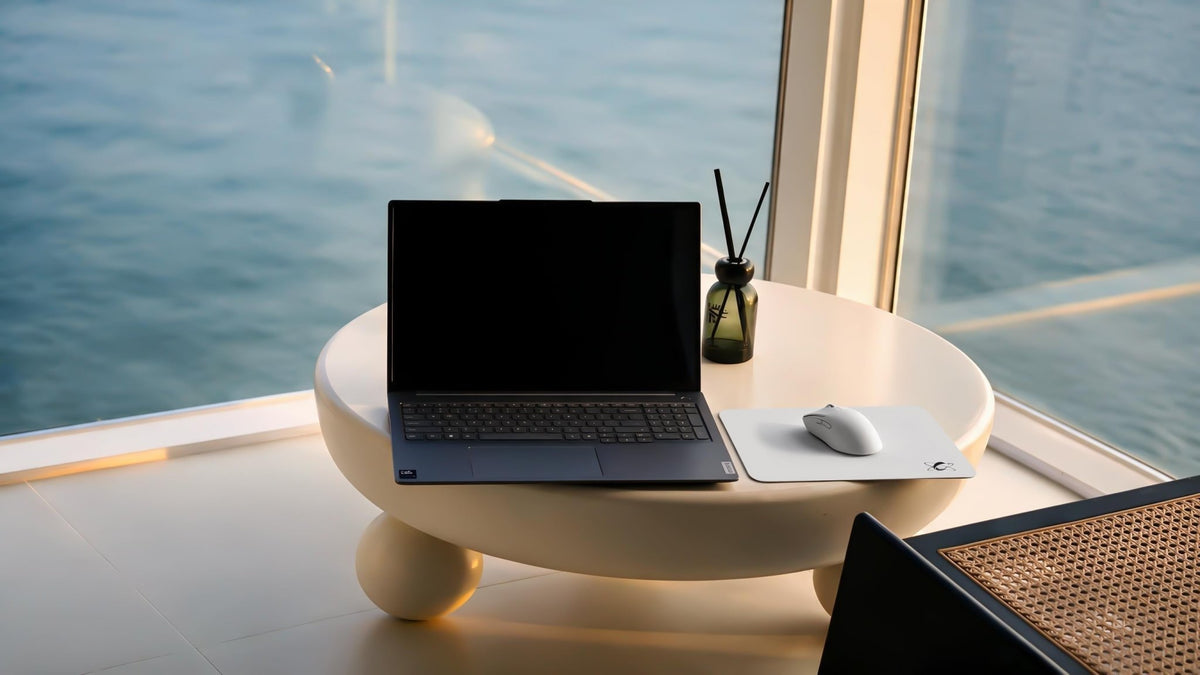

A glass mousepad can offer fast, reliable glide, but some users worry about one important question before switching: will their mouse sensor track properly on glass?
The short answer is: Yes-many modern gaming mice can work well on a micro-etched glass mousepad. Compatibility is not the same for every mouse.
Sensor generation, firmware, lift-off distance, mouse skates, surface cleanliness, wireless connection, and software settings can all affect the result.
If your cursor skips, jitters, drifts, or behaves unreliably, do not assume the glass mousepad is at fault right away. Run through the checks below first.
Start With the Right Expectation
A micro-etched glass mousepad is different from plain window glass, a mirror, or a transparent desk mat. Its texture gives the sensor a more defined pattern to read while also determining the glide feel under your mouse and hand.
However, a micro-etched surface does not guarantee that every mouse model will work perfectly. Older sensors, some office mice, scratched lenses or unusual software settings can still struggle.
The best approach is simple: test your specific mouse with a clean surface and a stable setup before making any major changes.
1. Clean the Glass Surface First
Dust, hair, skin oil, and small particles can affect both glide and tracking.
Start by wiping the mousepad with a clean microfiber cloth. If needed, use a small amount of water or a suitable residue-free cleaner on the cloth, then let the surface dry completely. Do not spray cleaner directly onto the pad.
A dirty surface can make a working mouse feel rough, erratic, or noisy. Cleaning is the quickest first step because it removes one of the most common and easiest-to-fix causes.
2. Inspect and Clean the Sensor Lens
Turn your mouse over and check the sensor area carefully. Dust, hair, or residue around the lens can interfere with tracking.
Use a clean, dry, soft brush, air blower, or cotton swab to remove loose debris. Avoid pushing anything into the sensor opening or using excessive liquid near the lens.
If the sensor lens looks scratched, cracked, or visibly damaged, cleaning alone may not solve the issue. In that case, test the mouse on another surface and contact the mouse manufacturer if the problem continues.
3. Check Your Mouse Skates
Mouse skates do not directly control the sensor, but worn or uneven skates can make movement feel similar to a tracking problem.
Check for:
● Uneven or very thin skates
● Lifted edges
● Adhesive residue around the mouse feet
● Dust trapped between the skates and the pad
● The mouse shell touching the surface
If the mouse feels scratchy but the cursor itself moves normally, the problem may be the skates rather than the sensor. Clean the mouse base and inspect the skates before changing your mouse settings.
For CLUSTRS glass mousepads, PTFE and UHMW-PE are suitable materials. You can compare different glide and control options in the CLUSTRS mouse skates collection.
4. Test the Mouse on Another Surface
Testing on another surface helps you identify whether the issue comes from the mouse or from the current setup.
Try the mouse on a clean cloth mousepad or a plain sheet of paper. If it skips or jitters on every surface, the issue is more likely related to the mouse, sensor, battery, wireless connection, firmware, or software.
If it only happens on the glass mousepad, return to the earlier steps: clean the pad, clean the sensor, inspect the skates, and check whether the mouse supports surface calibration.
This test is for diagnosis, not proof that one type of surface is always better than another. Different sensors are built with different tracking capabilities.
5. Check Battery, Wireless Connection, and USB Position
Wireless issues can look very similar to sensor problems.
If you use a wireless mouse, charge the battery or replace it if necessary. Move the USB receiver closer to your mouse, especially if it is connected at the back of a desktop computer. Avoid placing the receiver directly beside other wireless devices, metal objects, or USB hubs when troubleshooting.
If possible, test the mouse in wired mode or with a different USB port. This can help separate a tracking issue from a connection issue.
6. Update Software and Firmware
Mouse manufacturers may release firmware or software updates that improve stability, compatibility, or sensor behavior.
Check the manufacturer's official software for your mouse model. Install available updates, then restart your computer and test again.
Some gaming mice also include surface calibration or surface tuning settings. If your mouse supports this feature, follow the manufacturer's instructions and calibrate it on the glass mousepad you normally use.
Do not change DPI, polling rate, lift-off distance, and sensitivity all at once. Change one setting, test it, and note whether the behavior improves.
7. Consider Lift-Off Distance
Lift-off distance, often called LOD, is how high you can raise a mouse before its sensor stops tracking.
A mouse with a higher or poorly configured LOD may continue tracking slightly when you reposition it. This can feel like cursor drift or unintended movement, especially for players who lift their mouse often.
If your mouse software allows LOD adjustment, start with the manufacturer's default or recommended setting. Then test whether a lower setting improves your experience on the glass mousepad.
Not every mouse offers this control, and changing LOD is not a universal fix. It is simply one useful setting to check after cleaning and hardware troubleshooting.
8. Know When It May Be a Compatibility Issue
If the mouse tracks poorly on a clean glass mousepad but works normally on other surfaces, compatibility may be the issue.
Before deciding the mousepad is defective, try these final checks:
● Test a different gaming mouse if one is available
● Update the original mouse firmware
● Reset mouse software settings to default
● Try a different cable, receiver position, or USB port
● Check whether the sensor lens is damaged
● Contact the mouse manufacturer with your mouse model and firmware version
When contacting support, include the mouse model, connection type, firmware version, software version, the symptoms you see, and the troubleshooting steps you have already tried. This makes it easier to receive a useful answer.
A Clean Setup Helps You Diagnose Faster
A glass mousepad makes changes in skates, dust, and surface condition easier to notice. That is useful when you approach troubleshooting step by step.
Start simple: clean the pad, clean the sensor, inspect the skates, and test the connection. Then move to software updates and calibration only if needed.
If you are looking for a speed-focused micro-etched glass surface, explore the CLUSTRS CLST 2.0 Speed collection. As with any mousepad, test your own mouse and settings to find the setup that works best for you.
FAQ
Why does my mouse skip on a glass mousepad?
Common causes include a dirty sensor lens, dust on the pad, worn mouse skates, low battery, wireless interference, outdated firmware, or a sensor that does not track well on the surface.
Can mouse skates cause cursor skipping?
Worn skates usually affect glide feel rather than the sensor itself. However, uneven skates, debris, or the mouse shell rubbing against the pad can make movement feel rough or uneven.
Should I use surface calibration?
Use it only if your mouse manufacturer provides it for your specific model. Follow the official instructions and test the mouse on the surface you normally use.
What should I do if my mouse still does not track properly?
Test it on another surface, update firmware and software, check the wireless connection or cable, and contact the mouse manufacturer if the issue continues across multiple surfaces.